
Two-factor authentication (2FA) adds an essential layer of security to your StudioSpace account when you log in.
When 2FA is turned on, you'll need to complete a second verification step using a separate device, to log in to your StudioSpace account. 2FA helps protect your account from unauthorised access, even if your password is stolen.
2FA is currently opt-in.
We currently only support mobile authentication apps for 2FA, such as Google Authenticator and Microsoft Authenticator.
Adding 2FA to your account
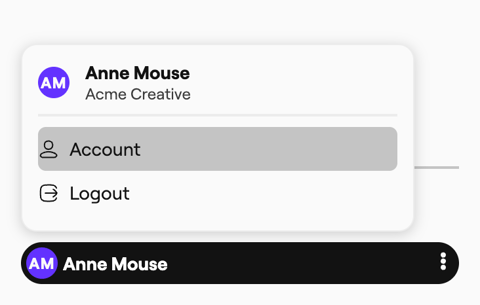
1. To add 2FA to your account, navigate to the sidebar on the left, click your name, and select Account.
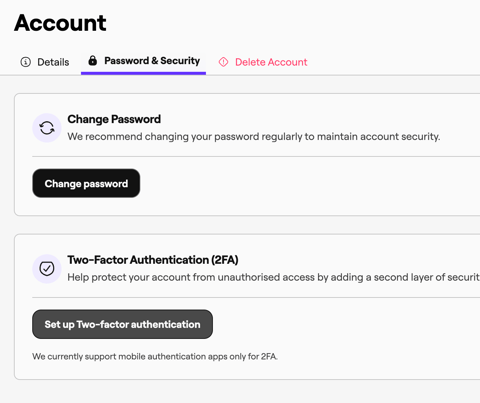
2. Navigate to Password & Security, and select "Set up Two-factor authentication".
3. Follow the on-screen instructions to set up your authenticator app.
4. Enter the code provided by the app to confirm your authentication.
5. Once your authentication is successful, you will be provided backup codes. Backup codes are one-use codes that you can use if you are unable to use your 2FA device to log in. Please copy these codes or download them, and keep them in a secured location to protect it from unauthorised access. Note: If you remove and re-add your 2FA method, these backup codes will no longer work.
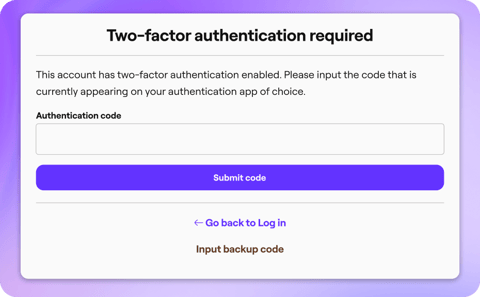
6. Whenever you log in, you will be asked to enter your authentication code in addition to your password.
Removing 2FA from your account
To remove your 2FA, you can do so from the same page where you set up your 2FA. You will be required to enter your password as an additional security step.